- Transcript translation
- Built for Google Meet
Translate a Google Meet call into a transcript your team can read
MeetVoice writes down what the other participants say while the call happens and translates every line into the language you picked, so the record is finished at the same moment the call is.
Does Google Meet's built-in Transcripts feature support English?
Yes, on eligible paid Google Workspace editions, but a Transcript only saves what people say in the language they speak, without translating it. Translated captions are a separate feature and do not produce a separate exported document with both languages. MeetVoice is a translator: it translates what the other participants say into your language and keeps the original line next to it, so in the usual mode you pick two different languages.
Checked against Google's help on · Transcripts help
The trial gives you 30 minutes of live translation, no payment card required.
32 languages, any pair, chosen before you join.
The call this page was written for
You run a weekly build review with a contractor team in Madrid. Most of the call is in Spanish, the write-up goes to a stakeholder in Toronto who reads no Spanish, and somebody always ends up retyping the whole thing from memory afterwards. With MeetVoice that review is already written out in English by the time the call ends, line by line, with names and timestamps attached.
What this looks like during the call
Live transcript
ESENA translated, timestamped record of the call that you can export and forward the same day.
El proyecto piloto duró dos semanas más, así que las cifras finales solo llegan el jueves.
The pilot project ran two weeks longer, so the final numbers only land on Thursday.
Entonces movamos la revisión al viernes por la mañana. Hoy aviso al cliente.
Then let's move the review to Friday morning. I'll let the client know today.
Me sirve. Mándame el borrador la noche anterior, con el desglose de costes.
Works for me. Send me the draft the evening before, with the cost breakdown.
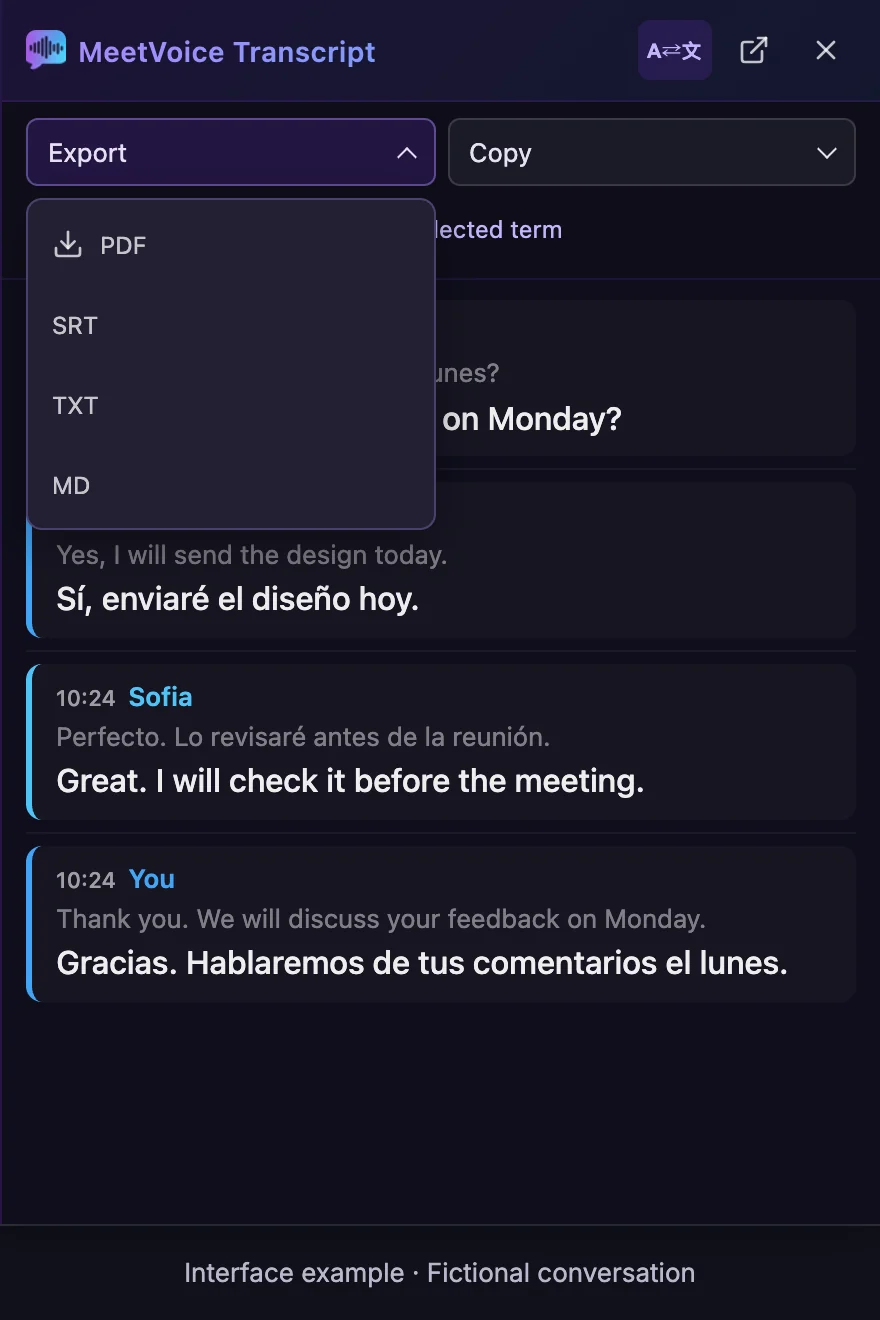
Read the full transcript instead
Sofia
What was said: ¿Podemos revisar el diseño el lunes?
Translation: Can we review the design on Monday?
You
What was said: Yes, I will send the design today.
Translation: Sí, enviaré el diseño hoy.
Sofia
What was said: Perfecto. Lo revisaré antes de la reunión.
Translation: Great. I will check it before the meeting.
You
What was said: Thank you. We will discuss your feedback on Monday.
Translation: Gracias. Hablaremos de tus comentarios el lunes.
How to set it up
MeetVoice is a Chrome extension plus a companion desktop app. The extension reads the Google Meet tab you already have open and the desktop app coordinates the session from your machine, so no extra participant is added to the call.
Step 1 Install the extension and the desktop app
Add MeetVoice from the Chrome Web Store, then install the companion desktop app for Windows or macOS 13+ (Apple Silicon). The desktop app coordinates the session from your machine; speech is processed in transit and never stored, and the extension captures the meeting tab and, if you turn on translation of your own speech, your microphone.
Step 2 Choose the spoken language and the record language
Open the MeetVoice panel before you join and pick the language people will speak in and the language you want the written record in. Any pair of supported languages works, and you can change it between calls.
Step 3 Start translation, then export when the call ends
The transcript panel fills in as people talk. When the call is over, export the transcript as PDF, SRT or plain text from the same panel — there is no separate processing step to wait for.
What usually goes wrong
- Captions alone do not give you a reusable bilingual document; check the recording and export options before relying on them.
- Retyping a call from memory takes longer than the call did, and the specifics are the first thing to disappear.
- Forwarding a recording instead only moves the problem: the person who needs it has to sit through an hour in a language they do not understand.
Why this holds up in a real call
- Translation runs on the live audio, so the record is finished when the call is, not hours later.
- The record is grouped by speaker and keeps the time, so a contested detail can be traced back to a point in the call.
- Export is a styled PDF, an SRT file for subtitle editors, or plain text, and the last 50 meetings stay in your history.
How the three options compare
What Google Meet does on its own
On eligible plans, Transcripts are saved to Drive in the spoken language, with no translation. Translated captions stay on screen or can be embedded in a recording; they are not a separate document. A link to the Transcript is emailed to the host, the co-hosts and whoever started it after the meeting ends, and longer meetings take longer. Captions in a recording may become playable a few hours after the recording file is ready.
Standard captions transcribe speech; translated captions display translated text on eligible plans. Both are text features. Speech Translation is a separate feature for translated audio. Google announced general availability of Speech Translation on February 4, 2026, and on October 22, 2026 expanded it to 63 languages: Meet detects the spoken language, and participants can translate between any combination of supported languages in the same meeting. It reached Rapid Release Workspace domains from October 22, and Scheduled Release domains get it from November 2, 2026, which can take up to 15 days. Each participant turns Speech Translation on for themselves; most eligible plans allow up to 90 minutes per meeting, Google AI Ultra up to 8 hours. Access depends on an eligible plan (in scheduled meetings, the host's), administrator settings, supported devices and participants allowing their voices to be translated. Speech Translation is not available in recordings or live streams. Where meeting recording is available, Record captions can include captions in the recording. Turning on captions alone does not automatically create a bilingual PDF, SRT or TXT export; availability and permissions depend on the plan and settings.
| What you are comparing | MeetVoice | Built-in Google Meet | Notetaker bot that joins the call |
|---|---|---|---|
| Do you get a translated record you can keep? | Yes — a translated transcript you can export as PDF, SRT or plain text. | On eligible plans, Transcripts are saved to Drive in the spoken language, with no translation. Translated captions stay on screen or can be embedded in a recording; they are not a separate document. | Often yes, but the file is produced on the vendor's servers rather than on your machine. |
| Who has to be in the call for it to work? | Only you. The other participants see the usual roster and nothing is added to it. | Nobody extra — captions are part of Google Meet itself. | An extra participant is visible to everyone, and in organizations where administrators restrict guest apps it may not be admitted at all. |
| When is the written record ready? | At the end of the call, because it is written during the call. | A link to the Transcript is emailed to the host, the co-hosts and whoever started it after the meeting ends, and longer meetings take longer. Captions in a recording may become playable a few hours after the recording file is ready. | After the call, once the vendor has finished processing it. |
| What does it cost to find out? | 30 minutes of live translation with no payment card, then plans from €9 per month. | Included at no extra charge, but only on eligible Google Workspace plans. | Varies by vendor; most publish a limited free tier and charge per seat above it. |
| Is your language covered? | In the usual mode, pick any two different languages MeetVoice supports. | Check Google's list of Transcripts languages and whether your Google Workspace edition includes the feature. | Language coverage depends on the service; check that it supports yours. |
| Where is the saved text kept? | In the extension's history on your computer (your recent meetings) and in the files you export. | A Transcript file is saved in the meeting organizer's Google Drive. | Usually in the service's own cloud account. |
Questions people ask before installing
Does the transcript keep the original wording too?
Yes. MeetVoice keeps the spoken line together with its translation in each saved entry. The transcript panel shows both by default and can show the translation alone; the PDF, SRT and plain-text exports include the pairs. In voice-only mode the other participants' lines are not saved.
Can I translate a Google Meet recording I already have?
No. MeetVoice works on live audio while the call is running, so it has to be switched on before people start talking. There is no upload step for an existing file.
How reliable are the speaker labels?
Lines are grouped by the speaker MeetVoice heard. Overlapping speech and shared conference-room microphones can put a line under the wrong name, so treat the names as a strong hint rather than a formal record of who said what.
Is the audio of my call kept anywhere?
No. Audio is processed in transit and is not stored on our side. What lands in your history is text, and it stays on your own computer.
Does the transcript include what I say myself?
By default the transcript holds what the other participants say. Your own lines are saved only while translation of your own speech is switched on (it is off by default), and multilingual mode never translates your own speech. In voice-only mode the other participants' lines are not saved.
What is in the exported file?
PDF, SRT and plain text each hold the original line and its translation, grouped by speaker and keeping the time. SRT timings are based on when the lines arrived in the call, so treat them as approximate. The PDF keeps up to the most recent 500 entries and may shorten long text further; SRT and plain text carry all saved entries.
What works in the free trial?
The transcript and its PDF, SRT and plain-text export work in the 30-minute trial the same way as on paid plans. AI summaries and meeting notes come with any paid plan and are not part of the trial.
Do the other participants need MeetVoice too?
No. MeetVoice captures the other participants' speech from your meeting tab, and your own speech from the microphone only when translation of your own speech is switched on, so the other participants install nothing and no extra participant joins the call.
Turn what was said in one language into a written record the rest of your team can actually read.
The trial gives you 30 minutes of live translation, no payment card required.
Page last reviewed